How to Fix WhatsApp Web Not Working on Chrome? 10 Solutions


Table of Content
Introduction
WhatsApp Web not working on Chrome is almost never a WhatsApp problem. It is a Chrome problem. And the fix is almost always sitting inside your browser settings, not inside your WhatsApp account.
If WhatsApp Web is not loading, showing a blank screen, or refusing to scan the QR code, the fastest first step is to open an incognito window and test it there. If web WhatsApp not working disappears in incognito, a corrupt cache or a conflicting extension is causing the WhatsApp Web problem on your main browser window. Clear your site data, disable your extensions one by one, and refresh the page. In most cases, WhatsApp Web not working on Chrome is resolved within two minutes using exactly those steps.
This guide covers all 8 fixes in order, starting with the fastest ones, so you can stop asking why WhatsApp Web is not working and get back to your chats without wasting time on solutions that do not apply to your situation.
Quick Fixes: WhatsApp Web Not Working on Chrome at a Glance
Fix | What to Do |
Refresh or Re-Login | Hard refresh with Ctrl + Shift + R or log out and scan QR again |
Clear Cache and Cookies | Press F12 > Application > Clear site data |
Disable Extensions and VPN | Turn off ad blockers and VPNs from the Chrome extensions menu |
Open in Incognito Mode | Press Ctrl + Shift + N and test WhatsApp Web without cache or extensions |
Check Internet and Phone | Confirm both devices are online and date and time settings match |
Update WhatsApp on Phone | Update from Google Play Store or Apple App Store |
Update Chrome | Three-dot menu > Help > About Google Chrome |
Check Server Status | Go to downdetector.com and search for WhatsApp |
How to Fix WhatsApp Web Not Working on Chrome: Solutions
Work through these fixes in order. Each one takes under two minutes and addresses the most common causes of WhatsApp Web not working, starting with the fastest and most likely culprit first.
1. Refresh the Page or Re-Login to Fix WhatsApp Web Not Working
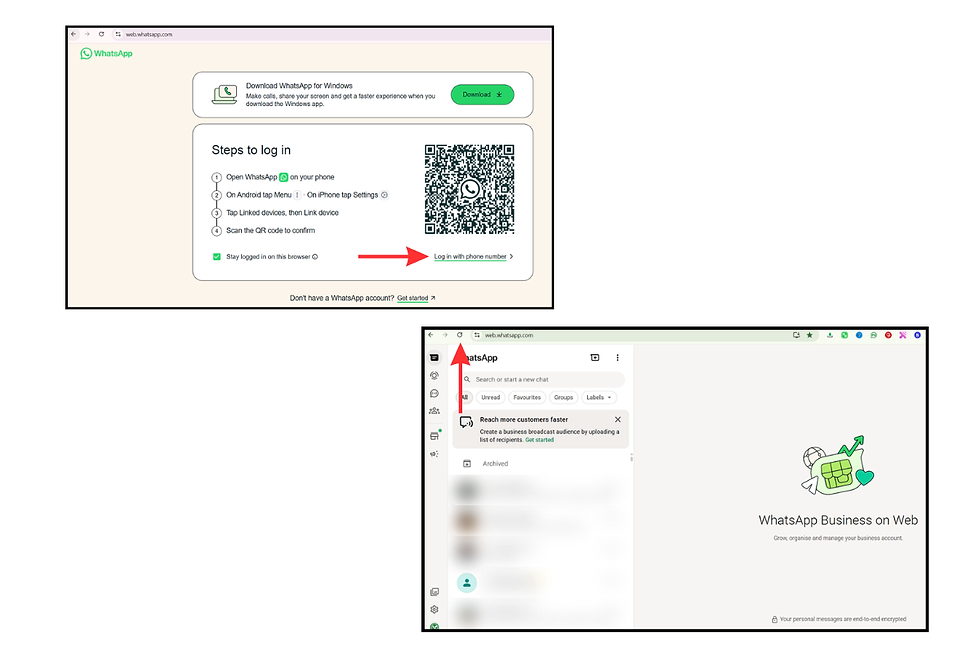
The simplest fix when WhatsApp Web is not working is a hard refresh. Press Ctrl + Shift + R on Windows or Cmd + Shift + R on Mac to force Chrome to reload the page without using cached data. If the WhatsApp Web not working problem persists after refreshing, log out and scan the QR code again.
Step 1: Click the three-dot menu inside WhatsApp Web and select "Log out"
Step 2: Open WhatsApp on your phone and go to Settings > Linked Devices > Link a Device
Step 3: Scan the QR code on web.whatsapp.com to establish a fresh session and check whether WhatsApp Web not loading resolves
This clears the existing broken session and resolves most cases of WhatsApp Web not working after a browser or system restart.

2. Clear Cache and Cookies to Fix WhatsApp Web Not Loading
Corrupt cache and cookies are the single most common cause behind WhatsApp Web not working on Chrome. Stored session data conflicts with the current page load and stops WhatsApp Web from opening entirely. The fastest fix is clearing site data directly from Developer Tools.
Step 1: Press F12 to open Chrome Developer Tools
Step 2: Go to the Application tab and expand the Storage section in the left sidebar
Step 3: Click "Clear site data," then refresh web.whatsapp.com and scan the QR code to check if WhatsApp Web not loading is resolved
If the WhatsApp Web problem continues after clearing site data, clear the full browser cache:
Step 1: Press Ctrl + H to open Chrome history and click "Clear browsing data"
Step 2: Set Time Range to "All time" and check Cookies and other site data and Cached images and files
Step 3: Click "Clear data," relaunch Chrome, return to web.whatsapp.com, and confirm whether WhatsApp Web not working on Chrome is fixed

3. Disable Extensions and VPN Causing WhatsApp Web Not Working in Chrome
Ad blockers, VPNs, and privacy extensions silently block the background scripts WhatsApp Web needs to run. This is one of the most consistent reasons why WhatsApp Web is not working in Chrome specifically, since Chrome supports a far wider range of extensions than other browsers and any one of them can break WhatsApp Web without displaying an error.
Step 1: Click the puzzle icon in the top right of Chrome next to the address bar and select "Manage extensions"
Step 2: Toggle off every extension one by one, starting with ad blockers and VPNs. Refresh web.whatsapp.com after each to identify which one is causing the WhatsApp Web problem
Step 3: Once you identify the culprit causing WhatsApp Web not working in Chrome, either remove it or open its settings and whitelist web.whatsapp.com to fix the conflict permanently

4. Open WhatsApp Web in Incognito Mode When WhatsApp Web Cannot Open
Opening WhatsApp Web in incognito mode is the fastest diagnostic step when you cannot tell whether a cache issue or extension is causing WhatsApp Web not opening. Incognito disables all extensions and ignores cached data entirely, which is why WhatsApp Web not working on your main window often loads perfectly in incognito.
Step 1: Press Ctrl + Shift + N to open a new incognito window in Chrome
Step 2: Go to web.whatsapp.com and scan the QR code as usual
Step 3: If WhatsApp Web loads correctly in incognito but WhatsApp Web not opening on the main window continues, go back to Fix 2 or Fix 3 to resolve the root cause permanently
5. Check Your Internet Connection to Solve WhatsApp Web Problem
WhatsApp Web not working is sometimes a connectivity issue on your computer or your phone rather than a browser issue. Web WhatsApp not working on Chrome while every other website loads normally is a sign the problem is specific to how Chrome or your network handles web.whatsapp.com.
Step 1: Refresh any other webpage to confirm your computer has a stable internet connection. If other pages load slowly or fail, restart your router before doing anything else
Step 2: Confirm your phone is connected to the internet and not on airplane mode. WhatsApp Web depends on your phone being reachable even when linked devices function independently
Step 3: If you are on a work or school network, test on a mobile hotspot to see whether web.whatsapp.com is being blocked at the firewall level. Also check that the date and time on both your phone and computer are set correctly since a mismatch silently breaks WhatsApp Web sessions without any visible error

6. Update WhatsApp on Your Phone to Stop WhatsApp Web Not Working
An outdated WhatsApp app on your phone directly causes WhatsApp Web not working, QR codes refusing to scan, and sync errors that appear without any browser-side explanation. WhatsApp Web depends entirely on the version of WhatsApp running on your linked phone, so an outdated app breaks the connection even when Chrome is perfectly configured.
Step 1: Open the Google Play Store on Android or the App Store on iPhone
Step 2: Search for WhatsApp and check whether an update is available
Step 3: Install the update, relaunch WhatsApp on your phone, return to web.whatsapp.com, and scan the QR code to confirm whether WhatsApp Web not working is resolved
7. Update Chrome to Fix WhatsApp Web Not Opening in Chrome
An outdated Chrome version is a quiet but consistent cause of WhatsApp Web not opening in Chrome that most users overlook. WhatsApp Web actively drops support for older browser versions, so running an outdated Chrome can make WhatsApp Web stop working entirely without any warning message.
Step 1: Click the three-dot menu in the top right of Chrome and hover over Help
Step 2: Click "About Google Chrome" and wait for Chrome to automatically check for and download any available update
Step 3: Click "Relaunch" once the update completes, return to web.whatsapp.com, and check whether WhatsApp Web not working on Chrome is now fixed
8. Check If WhatsApp Servers Are Down When Web WhatsApp Is Not Working
If WhatsApp Web not working on Chrome persists across every browser and every network you test on, the problem may not be on your device at all. WhatsApp server outages are rare but real, and no browser fix resolves WhatsApp Web not working during a server outage.
Step 1: Open your browser and go to downdetector.com
Step 2: Search for WhatsApp and check the activity graph for a spike in reports from other users facing the same WhatsApp Web problem
Step 3: If servers are confirmed down, wait for WhatsApp to restore the service. WhatsApp Web reconnects automatically once servers are back and a simple page refresh will confirm it is working again
9. Disable Chrome Memory Saver When WhatsApp Web Keeps Reloading
Chrome’s Memory Saver feature automatically puts inactive tabs to sleep to reduce RAM usage. The problem is that WhatsApp Web relies on a persistent background connection, and when Chrome discards the tab, WhatsApp Web disconnects, reloads repeatedly, or silently stops syncing messages. This is a newer and increasingly common reason behind WhatsApp Web not working on Chrome, especially on laptops with many tabs open.
Step 1: Click the three-dot menu in Chrome and go to Settings > Performance
Step 2: Turn off “Memory Saver” completely or add web.whatsapp.com under “Always keep these sites active”
Step 3: Restart Chrome, reopen WhatsApp Web, and check whether the random reloads, disconnects, or WhatsApp Web not loading issues stop
10. Turn Off Hardware Acceleration to Fix WhatsApp Web Blank Screen Issues
Hardware acceleration allows Chrome to use your GPU for rendering webpages, but on some systems it conflicts with WhatsApp Web and causes blank screens, freezing, QR code glitches, or chats failing to load properly. This happens more frequently on older laptops, outdated graphics drivers, or after Chrome updates.
Step 1: Open Chrome Settings and go to System
Step 2: Disable “Use hardware acceleration when available”
Step 3: Click “Relaunch” to restart Chrome, then reopen web.whatsapp.com and verify whether WhatsApp Web not opening or displaying a blank screen is fixed
Why Is WhatsApp Web Not Working? Common Causes Behind the Problem?
Knowing why WhatsApp Web is not working helps you jump straight to the right fix. WhatsApp Web not working on Chrome traces back to one of these causes in almost every case:
1. Corrupt Cache or Cookies
Browser cache and cookies accumulate and become corrupted over time. When that happens, WhatsApp Web not loading is a direct result because the stored session data from a previous visit conflicts with the current page load. Clearing cache is the fix.
2. A Browser Extension Blocking WhatsApp Web
Ad blockers, VPNs, and privacy extensions are among the most searched reasons behind why WhatsApp Web is not working in Chrome. They intercept the scripts WhatsApp Web runs in the background without displaying any error message, making this cause difficult to diagnose without the incognito test.
3. Unstable or Blocked Internet Connection
WhatsApp Web requires a stable connection on both your phone and your computer. Many users find web WhatsApp not working on Chrome only on their office or school network because the firewall blocks web.whatsapp.com entirely while everything else loads normally.
4. Outdated WhatsApp App on Your Phone
Running an outdated WhatsApp version on your phone directly causes WhatsApp Web not opening and QR scan failures. The web version communicates through the app on your phone, so an outdated app breaks that link regardless of what Chrome does.
5. Outdated Chrome Browser
WhatsApp Web drops support for older Chrome versions over time. An outdated browser is a consistent and underappreciated reason behind why WhatsApp Web is not working in Chrome for users who have not updated in months.
6. WhatsApp Servers Are Down
When WhatsApp servers experience an outage, web WhatsApp not working is not something any local fix resolves. The problem exists on WhatsApp's side and resolves itself once they restore the service.
7. Session Expired or Phone Offline Too Long
If your phone went offline for more than 14 days, WhatsApp Web cannot open and shows only the QR screen. WhatsApp Web not working for this reason is fixed by getting your phone back online and re-scanning the QR code to relink the device.
Why WhatsApp Web Might Not Working After All 10 Fixes?
If WhatsApp Web not working on Chrome continues after every fix above, these three scenarios cover what is left:
1. Chrome Is Too Outdated to Support WhatsApp Web
WhatsApp Web no longer supports very old Chrome versions. If your browser has not been updated in a long time it may fall outside WhatsApp's supported range entirely. Switching temporarily to Firefox or Microsoft Edge confirms whether the WhatsApp Web problem is browser-specific or whether the issue lies elsewhere.
2. Phone Has Not Been Online in Over 14 Days
WhatsApp requires your phone to connect to the internet at least once every 14 days to keep linked device sessions alive. If that window passed, WhatsApp Web not working will continue regardless of browser settings. Get your phone online and re-scan the QR code to restore the session.
3. The Network Is Blocking web.whatsapp.com
Some corporate, school, or regional networks block web.whatsapp.com at the firewall level. If WhatsApp Web not loading only happens on one specific network but works on mobile hotspot or at home, the network is the problem rather than anything on your device. Contact your network administrator or connect through a trusted VPN.
WhatsApp Desktop App: The Best Alternative When WhatsApp Web Is Not Working on Chrome?
If WhatsApp Web not working on Chrome continues even after applying every fix, the WhatsApp Desktop app removes every browser-related cause in a single step. It runs as a native application on Windows or Mac rather than inside a Chrome tab, which means Chrome extensions, cached data, and browser settings can no longer interfere with your session.
1. Why the Desktop App Solves WhatsApp Web Not Working Permanently
The WhatsApp Desktop app does not use Chrome at all. There is no browser cache to corrupt, no extension to block scripts, and no Memory Saver feature discarding the tab mid-session. For anyone dealing with WhatsApp Web not opening on Chrome repeatedly, the desktop app is the most permanent and reliable fix available.
2. How to Download and Set Up the WhatsApp Desktop App
Step 1: Go to whatsapp.com/download on your computer and download the correct version for Windows or Mac
Step 2: Install the app and open it once installation is complete
Step 3: Scan the QR code shown in the app using WhatsApp on your phone via Settings > Linked Devices > Link a Device and your chats will sync within seconds
3. When to Switch from WhatsApp Web to the Desktop App
WhatsApp Web not working on Chrome continues after all 8 fixes have been applied
Your work or school network blocks web.whatsapp.com at the firewall level
Chrome's Memory Saver keeps discarding and reloading your WhatsApp Web tab mid-session
You want a persistent session that does not break when Chrome updates and restarts silently
How to Use WhatsApp Web Correctly to Prevent WhatsApp Web Not Working?
Many cases of WhatsApp Web not working come from skipping steps during setup rather than any browser or network issue. Here is the correct process to link WhatsApp Web without errors.
1. Open WhatsApp Web on Chrome Correctly
Go to web.whatsapp.com on your main Chrome browser window. Avoid using incognito mode if you want the session to persist between browser restarts since incognito deletes all local storage on close, which causes WhatsApp Web not working errors every single session.
2. Link Your Phone Without Skipping Steps
Open WhatsApp on your phone. On Android, tap the three-dot menu and select Linked Devices. On iPhone, go to Settings and tap Linked Devices. Tap "Link a Device" and scan the QR code displayed on web.whatsapp.com. Do not navigate away from the QR code page before scanning or the code will expire and WhatsApp Web will not open.
3. Wait for Full Sync Before Closing the Tab
After scanning the QR code, wait for WhatsApp Web to fully load all your chats before closing the browser tab or switching apps. Closing too early is a common cause of WhatsApp Web not loading properly on the first attempt and forces you to scan the QR code again.
4. Keep Your Phone Online Every 14 Days
Your phone must connect to the internet at least once every 14 days for WhatsApp Web to stay linked. Missing this window is one of the quietest and most common reasons behind WhatsApp Web not working appearing out of nowhere with no browser-related explanation.
Bonus Tip: Boost Your WhatsApp Marketing with a WhatsApp CRM
Using a WhatsApp CRM tool can make your business communication smoother and more organized. Whether you’re handling customer chats, sending marketing messages, or working with templates, a WhatsApp CRM helps you save time and improve results.
Step 1: Install a WhatsApp CRM Tool
Choose and install a reliable WA CRM extension or software from a trusted provider to enhance how you handle chats, templates, and campaigns.
Step 2: Open WhatsApp Web
Launch your WhatsApp CRM tool alongside WhatsApp Web so you can easily manage conversations, templates, and customer interactions in one place.
Step 3: Organize Your Chats
Use features like custom tabs or labels to sort your chats based on topics, customers, or marketing campaigns for better workflow and focus.
Step 4: Track Customer Interactions
Add notes to chats to record important details about customer interactions, conversations, or which messages you’ve sent.
Step 5: Schedule Messages and Reminders
Set reminders or schedule messages to ensure you send timely follow-ups, marketing campaigns, or important updates to your contacts.
Conclusion
WhatsApp Web not working on Chrome has a clear fix in almost every case. Clear your cache, disable extensions, open incognito to diagnose the cause, and update both WhatsApp on your phone and Chrome on your computer. Those four steps resolve web WhatsApp not working for the vast majority of users without touching anything else.
If WhatsApp Web is still not working after all 8 fixes, the WhatsApp Desktop app removes every browser-related cause of WhatsApp Web not working in one step and gives you a session that survives browser updates, restarts, and extension conflicts permanently.
Work through the list once and WhatsApp Web not loading will not be something you deal with again.
FAQ's
Why Is My WhatsApp Web Not Working?
WhatsApp Web not working on your device is almost always caused by one of four things: a corrupt browser cache, a conflicting extension, an outdated WhatsApp app on your phone, or an unstable internet connection. The fastest way to diagnose WhatsApp Web not working is to open an incognito window and test there first. If it works in incognito, a cache issue or extension is the cause and clearing site data or disabling extensions fixes it immediately.
Open an incognito window with Ctrl + Shift + N and go to web.whatsapp.com
If it loads in incognito, clear your main browser's cache via F12 > Application > Clear site data
Disable extensions one by one to find which one is blocking WhatsApp Web
Update WhatsApp on your phone from the Play Store or App Store
Confirm both your phone and computer are connected to stable internet
Why Is WhatsApp Web Not Opening in Chrome?
WhatsApp Web not opening in Chrome is most commonly caused by an outdated Chrome version or a browser extension blocking the page. An outdated browser silently drops compatibility with newer WhatsApp Web requirements, which is why the page refuses to open without any visible error. To fix WhatsApp Web not working this way, update Chrome first then clear site data if the problem continues.
Click the three-dot menu > Help > About Google Chrome to check for and install updates
Relaunch Chrome after the update and go to web.whatsapp.com
If it still does not open, press F12 > Application > Clear site data and refresh
Disable all extensions and test in incognito mode to rule out extension conflicts
If the issue persists across all browsers, check downdetector.com to confirm WhatsApp servers are not down
Why Is WhatsApp Web Not Loading?
WhatsApp Web not loading in Chrome usually means either the browser cache is corrupted or an extension is blocking the page from fully rendering. Both are quick fixes once you know which one is causing it. If WhatsApp Web not working persists after clearing the cache, the extension is the culprit and disabling ad blockers or VPNs one by one resolves it.
Press F12 > go to Application tab > expand Storage > click Clear site data
If it still does not load, press Ctrl + H > Clear browsing data > set All time > clear Cookies and Cached files
Disable all Chrome extensions temporarily and refresh web.whatsapp.com
Check that your internet connection is stable on both your phone and computer
Confirm WhatsApp on your phone is updated to the latest version
How Do I Fix WhatsApp Web on Chrome?
To fix WhatsApp Web not working on Chrome, start with the fastest solutions first and work down the list. Most cases of WhatsApp Web not working on Chrome resolve within the first three fixes without needing to go further. The complete fix involves clearing the cache, disabling extensions, and ensuring both your phone and Chrome are up to date.
Hard refresh the page with Ctrl + Shift + R to rule out a temporary glitch
Press F12 > Application > Clear site data to clear the WhatsApp Web session cache
Disable extensions one by one from the Chrome extensions menu and refresh after each
Open an incognito window with Ctrl + Shift + N and test if WhatsApp Web loads there
Update Chrome via the three-dot menu > Help > About Google Chrome
Update WhatsApp on your phone from the Play Store or App Store and re-scan the QR code
Is WhatsApp Web Down Right Now?
If WhatsApp Web is not working across every browser, every network, and every device you test on, there is a chance WhatsApp servers are down. WhatsApp outages are rare but they do happen. No browser fix will resolve WhatsApp Web not working during a server outage since the problem is on WhatsApp's end, not yours.
Go to downdetector.com and search for WhatsApp to check real-time server status
Look for a spike in the activity graph showing widespread reports from other users
Check WhatsApp's official social media accounts for any service announcements
If servers are confirmed down, wait for WhatsApp to restore the service
WhatsApp Web reconnects automatically once servers are back. Refresh the page after a few minutes to confirm


Comments